
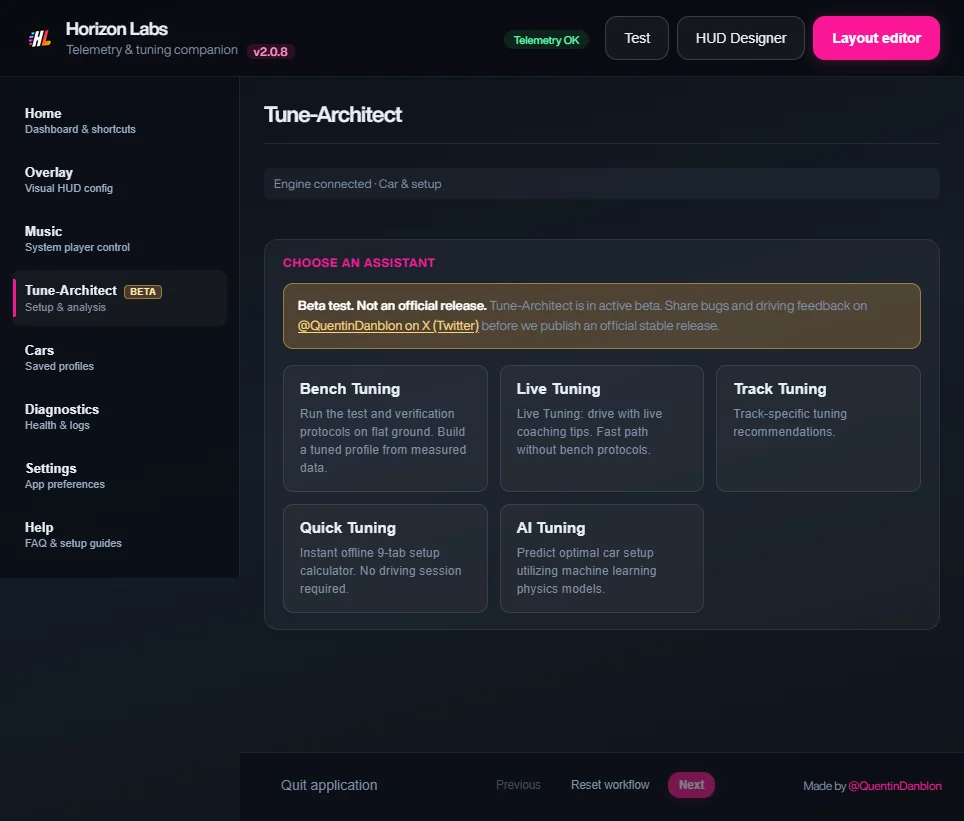
You can get a complete Forza Horizon 6 tune without driving a lap. In Tune Architect, Quick Setup (called Quick Tuning in the app) and AI Tuning both calculate a setup from the car’s data and your goal, before you drive. They fill nine tuning categories, and you type the values into Forza’s tuning menu yourself, because Horizon Labs never writes to the game. Treat the result as a baseline, then refine it with Bench, Live or Track tuning.
This guide goes deeper than the short overview of the five engines. Tune Architect works with Forza Horizon only.
What “zero laps” means
Quick Setup and AI Tuning need no driving session for the calculation itself. The app describes Quick Setup as an instant offline calculator with nine tabs. The one thing that is easier with the game running is the vehicle step: Horizon Labs can prefill the car’s data from the car it detects through telemetry, so Data Out needs to be on for that shortcut. Without it, you type the figures in.
The inputs, step by step
Both engines share the same guided steps. The app marks the result as stale if you change an input after calculating.
- Vehicle. Static data for the car: drivetrain, engine location, engine type, gear count, horsepower, torque (Nm), weight (kg) and weight distribution (% front). A “prefill from detected car” button fills these when the game is running.
- Car limits (optional). Minimum and maximum values copied from the game’s upgrade sliders: front and rear springs, ride height and aero. They keep the calculator inside what you can actually install. Every field can be left blank.
- Build config. The upgrades you have fitted: tyre compound, differential type, gearbox type, suspension type, and whether front and rear aero are installed. These matter because a part you have not fitted locks its sliders. The app tells you how many tabs it skipped because of build locks, and a read-only parts advisor lists upgrades that would help your goal.
- Goal. What kind of driving the tune is for. See the next section.
- Calculate. Pick the engine mode and how gearing is decided, then run it.
- Proposed setup and review. The recommended values appear per tab, with a button to copy the full setup.
The goal and the handling preferences
The goal shapes all nine categories. The app offers Balance, Circuit, Cornering, Drag, Drift, Speed, Touge, Rally and Offroad. In the app’s own descriptions: Circuit is road racing with balanced grip and a stable differential; Speed is low drag and long gearing; Drag is launch grip and short gears; Drift is an open differential with a soft rear; Rally and Offroad favour compliant suspension, with Offroad adding ride height and a traction focus.
On top of the goal you can set two preferences:
- Balance preference
- Neutral, Oversteer (a livelier rear that rotates when you lift) or Understeer (a safer front end).
- Corner intent
- Balanced, Quick response (firmer bars, springs and damping), Sharp turn-in (softer front, more front toe-out) or High stability (rear toe-in, stiffer rear, more rear downforce).
Quick Setup: the calculator
Quick Setup computes the tune from formulas and baselines. The engine mode can be Physics, Quick Tuning or a Smart blend of the two. For gearing you choose either an estimate from power and weight, or a target top speed in mph, with an optional maximum RPM. It runs offline and reports how many values it recommends for the goal and mode you chose.
AI Tuning: the model
AI Tuning uses the same steps but asks a machine-learning model for the setup instead, trained, as the overview describes it, on community Forza Horizon data. It needs the game’s car to be known, so it works best with the game running and the car detected. The result shows its source and a confidence figure. If the model cannot answer, the app falls back to Quick Tuning and says so in the source line, so you always know which engine produced the numbers.
Which one first? Run Quick Setup for a transparent baseline, run AI Tuning for the same car and goal, and compare. Where they agree, you can be fairly confident; where they differ, drive both and keep the one you prefer.
The nine categories you get
| Category | What it covers |
|---|---|
| Tires | Pressures, front and rear. |
| Gearing | Final drive and gear ratios, where your gearbox allows it. |
| Alignment | Camber, toe and caster. |
| Anti-roll bars | Front and rear stiffness. |
| Springs | Spring rates, with ride height inside your car’s limits. |
| Damping | Rebound and bump. |
| Aero | Front and rear downforce, if wings are installed. |
| Brakes | Balance and pressure. |
| Differential | Acceleration and deceleration lock, for the diff type fitted. |
With a sport gearbox only the final drive is tuned, because the factory ratios stay fixed in the game; the app tells you when that happens. To see what each slider does for a given discipline, read the drift, drag and grip tune guides.
A typical first session
Pick a car, install the upgrades you want, and note which parts are fitted. Open Tune Architect, let it prefill the vehicle from the detected car (or type the figures in), and copy the slider limits from the game’s upgrade menu if you want tighter results. In Build config, match the installed parts exactly: if you set a part the car does not have, the calculator will recommend values you cannot enter. Choose a goal, add a balance preference only if you already know the car’s tendencies, and calculate.
Review the tabs one by one. The app shows each tab separately with a copy button, so you can work through Forza’s menu in order: tires, gearing, alignment, bars, springs, damping, aero, brakes, differential. Then drive a few corners. If the car does what the goal promised, you are done; if it misses in one direction, change the balance preference or corner intent and recalculate rather than editing every slider by hand.
Which engine to trust when
- New car, no data: Quick Setup or AI Tuning. Nothing else can help before you have driven.
- Gearing looks wrong: run Bench. A measured pull to top gear tells the app far more than the car’s listed power does.
- Balance feels off in everyday driving: use Live for a few minutes and apply one recommendation at a time.
- One circuit that matters: use Track after you have a stable baseline, since lap data is only useful once the car behaves consistently.
The telemetry that Bench, Live and Track read is the data the game sends out through Data Out. See the FH6 telemetry fields reference for what that includes.
Entering it in Forza
Open the car’s tuning menu in Forza and copy each tab’s values across. Do this before you refine anything, since Bench, Live and Track compare against what the car really runs. The app only calculates and displays; you decide what goes into the game.
Refining: Bench, Live and Track
The baseline is an informed starting guess. These three engines turn it into a measured result.
Bench
Bench builds a tuned profile from your own telemetry on flat ground. You first declare your in-game assists (traction control, stability control, shifting, steering, braking and launch control), because the formulas adapt to what you state. Then you drive a short protocol: a straight full-throttle pull to top gear, a straight stop, then one steady corner. The app suggests EventLab track 699 333 588, a flat strip of about 3.6 km by 300 m, but any large flat area works. After you apply the result in Forza, a Verify run repeats the same protocol. Use Standard or Simulation steering, as assisted steering hides the car’s real balance.
Live
Live tuning coaches you while you drive. It watches balance (neutral, understeer, oversteer), grip, temperature and weight transfer, and offers recommendations with a confidence level that you apply manually in Forza. The app advises two to three minutes of driving with hard braking into corners and steady throttle on exit, so it sees varied data. Live coaching uses more CPU while you drive.
Track
Track tuning is for one circuit. You pick the circuit, learn laps, analyse them, then get recommendations, validate and compare. Expect three or more laps. It adds circuit-specific changes and a comparison against your earlier laps; lap delta explains how the gap to a reference lap is read.
Good to know
- A calculated tune cannot know your driving style. Use the balance preference if the car feels wrong in a consistent direction.
- Change one category at a time when refining, and test before the next change.
- Test on the surface the tune is for. The app warns that its Rally and Offroad presets were measured on asphalt, so re-test on loose ground.
- If a tab is missing from the result, check Build config: a part you have not fitted locks it.