
In Forza Horizon 6, open Settings → HUD and Gameplay, switch Data Out on, set Data Out IP Address to 127.0.0.1 and Data Out IP Port to 20055. That is the pair Horizon Labs listens on by default on a Windows PC. Data only flows while you are driving, so drive for a few seconds before you check whether the HUD is alive.
The three settings
Forza’s documentation lists three options in the HUD and Gameplay menu. Horizon Labs’ own hint calls the group “Data Output”, but the labels below are the ones in Forza’s documentation.
- Data Out
- On or off. When on, the game starts sending as soon as you start driving.
- Data Out IP Address
- The machine that receives the data.
127.0.0.1(localhost) is supported, so the game and the app can share one PC. - Data Out IP Port
- The UDP port your app listens on. It must match the app exactly.
The stream is one-way UDP. The game sends packets at a rate equal to its frame rate and receives nothing back. Forza Horizon 6 has a single fixed packet format of 324 bytes, so unlike Forza Motorsport there is no format option to pick.
Set it up on a Windows PC
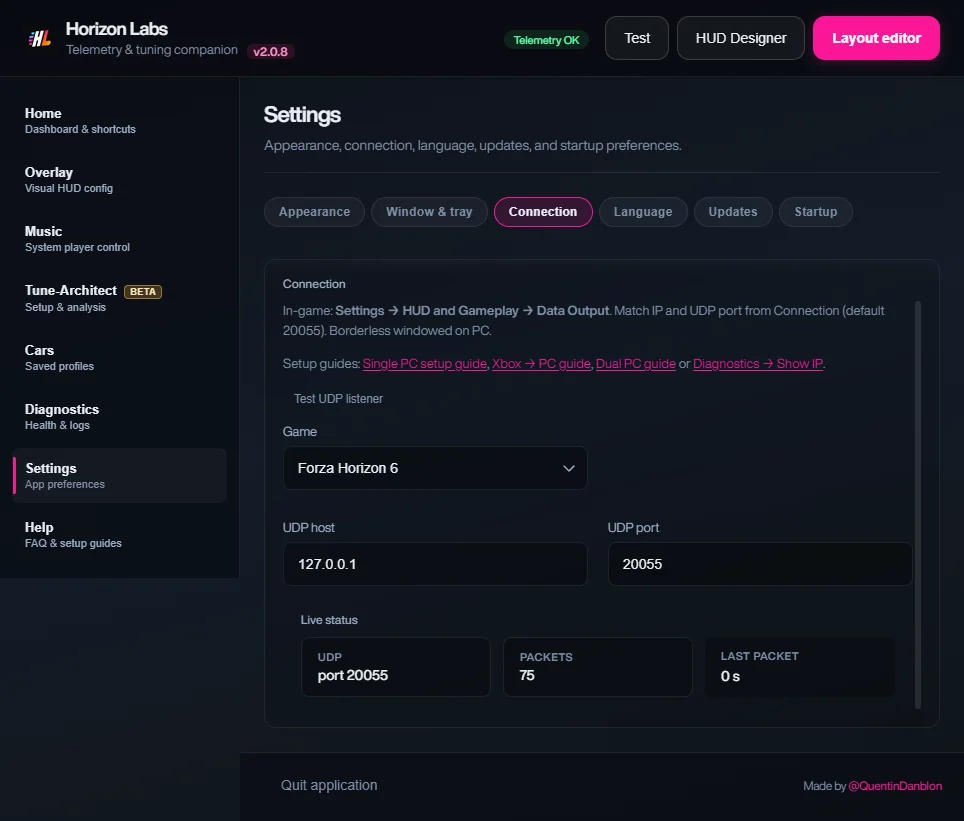
- In Horizon Labs, open Settings → Connection and choose Forza Horizon 6. The default UDP port is
20055. - In the game, open Settings → HUD and Gameplay and turn Data Out on.
- Enter
127.0.0.1as the IP address and20055as the port. - Play in borderless windowed mode, which is what the overlay needs to draw above the game.
- Drive. The HUD wakes up as soon as the first packet arrives.
If you change the port in Horizon Labs, change it in the game to the same number. The other direction works too: pick any free port in the game, then type it into the app.
Pick a port that is safe
Forza warns against ports 5200 to 5300: the game binds its own outgoing socket to a port in that range, so a receiver on one of them can collide with it. This matters because Forza Motorsport guides often suggest 5300. For Forza Horizon 6, stay with 20055 or choose another free number outside that range.
The port also has to be free on your side. If another program already holds it, Horizon Labs reports that the port is in use. Close the other program or change the port, then use Retry UDP in the Diagnostics tab.
Playing on Xbox
An Xbox cannot use 127.0.0.1, because that address means “this device”. Send the data to the PC instead.
- Put the console and the PC on the same local network.
- On the PC, find its local IPv4 address. Horizon Labs shows the LAN address in its Diagnostics tab for exactly this purpose.
- On the Xbox, set Data Out IP Address to that address and Data Out IP Port to
20055. - Make sure Horizon Labs is listening on the same port, then start driving.
The overlay itself draws on the PC, so for an Xbox you will usually look at the HUD on the PC screen, in a stream, or on a second screen. See the HUD on a second PC and the OBS setup. Horizon Labs reads the telemetry the console sends and does not touch the console.
Why nothing shows: a checklist
- You are not driving. Forza does not send data in menus, pauses, replays, rewinds or after you finish a race. A HUD that is blank in the garage is normal.
- Data Out is off. It is an on/off toggle, separate from the IP and port.
- Port mismatch. The game and the app must use the same number. A single wrong digit is silent.
- Wrong IP on Xbox. The console needs the PC’s LAN address, not
127.0.0.1. Addresses can change when the router hands out a new one, so recheck after a reboot. - Firewall. Windows Firewall must allow incoming UDP on the port for the app. On the same PC, localhost traffic normally passes, but from an Xbox it arrives from the network and a profile set to Public can block it. Allow the app on Private networks, or add an inbound UDP rule for the port.
- Port in use. Another telemetry app may already be bound to
20055. - VPN or a different subnet. The console and the PC must be able to reach each other directly. Guest Wi-Fi and some VPNs break this.
Running several apps at once
Only one program can listen on a given UDP port, and the game sends to a single IP and port. If you want two telemetry programs at the same time, you need a relay between them, because Horizon Labs does not forward the stream to other apps. Close the other program first, or run it on a different machine and point the game at that one. A second PC that only needs to see the HUD does not need a second telemetry app: use LAN mode, described in the second PC guide.
Good to know
- Data Out is a feature of the game, built for dashboards, motion rigs and companion apps. Horizon Labs only reads what the game sends. See whether telemetry software is bannable for the details and the limits of that statement.
- What arrives in each packet is listed in the FH6 telemetry fields reference.
- Forza Horizon 4 and 5 use the same Data Out menu and the same default port in Horizon Labs. See Forza Horizon support.
Sources: Forza Horizon 6 Data Out Documentation (Forza Support). Horizon Labs defaults come from the app itself. Checked 2 November 2026.