
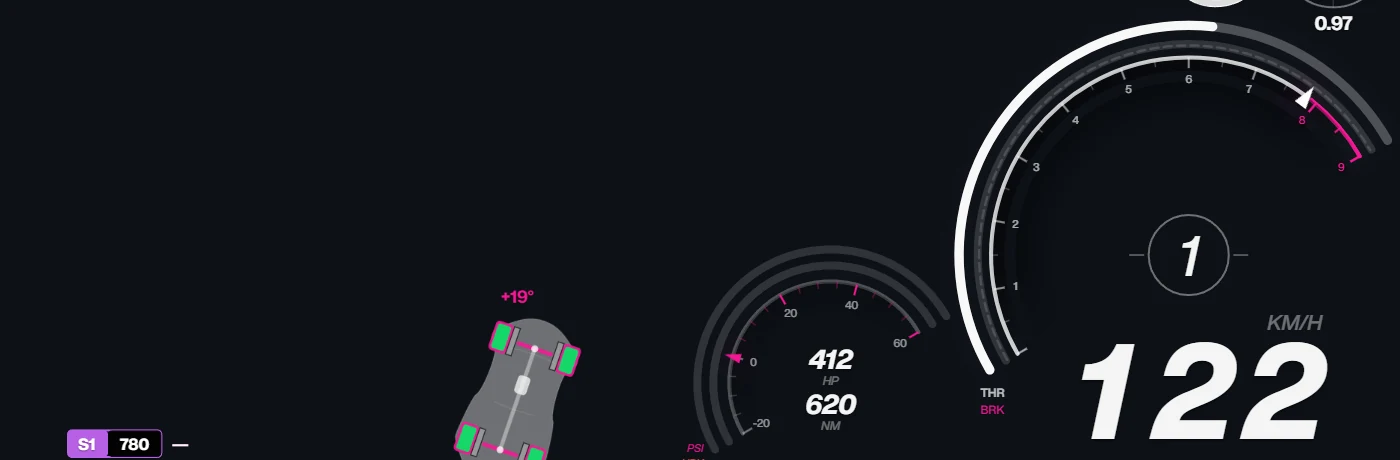
Forza Horizon 6 does not send a drift angle. Data Out carries the car’s velocity in its own local space, and Horizon Labs turns that into a drift angle in degrees, in real time. You can read it on the built-in Tires & grip widget (turn on Drifting angle), or bind the driftAngle field to any text, bar or needle in the Designer.
How the angle is derived
A car drifts when it points one way and travels another. Data Out gives the velocity in the car’s local axes: X is right, Z is forward. The angle between the direction the car is travelling and the direction its nose points is the arctangent of the sideways velocity over the forward velocity. Zero means the car travels exactly where it points. Positive and negative values tell you which side the tail is out.
This is the sideslip angle, and it comes from VelocityX and VelocityZ in the packet. See the FH6 telemetry fields for the rest of what the game sends.
What Horizon Labs does on top of it
A raw sideslip number also moves in ordinary cornering, which would make a readout flicker on every turn. Horizon Labs therefore filters it:
- Below about 25 km/h the angle reads 0.
- Below about 6 degrees of slip it reads 0.
- A normal cornering slide, where you steer into the turn with moderate slip, stays at 0.
- It counts as a drift when slip is strong, or you counter-steer, or the handbrake is on, or the car keeps a fast yaw rotation with a larger slip angle.
- Once a drift is detected the value is held for a short moment (about half a second) and then eases back to zero instead of snapping.
The result is a number that sits at 0 while you grip and rises as you slide. It is the filtered sideslip angle, not a score, and it is not the same thing as the points the game awards for drifting. The thresholds are Horizon Labs’ own choice, so other apps can show different numbers for the same slide.
Show it with the built-in widget
- Turn on Data Out as described in the Data Out settings guide (
127.0.0.1, port20055). - In Horizon Labs, open the layout editor and add the Tires & grip widget.
- In its details, keep Drifting angle on to show the angle as text and Drift rotation on for the rotation effect.
- Drive and slide the car. The value appears when the filter above says you are drifting.
Bind it in the Designer
For your own design, create or open a HUD (see your first HUD) and link a layer to a field in the binding panel.
- Add a text layer, a bar or a rotating shape.
- Open its bindings and pick Drift angle (
driftAngle) in the telemetry list. - For text, use an expression such as
round(abs($driftAngle))to show whole degrees without the sign. Keep the sign if you want a left or right indicator. - For a rotating layer, map the range, for example -60 to 60 degrees, to the layer’s rotation.
- For a calmer movement, bind Smooth drift (
smooth.driftAngle) instead of the raw field, or add a spring motion on the drift channel, which the Designer offers with its own drift profile. - Preview with a simulated scene or with live telemetry, then send the HUD to the overlay with one click.
The Designer’s preview with live telemetry is the quickest way to tune the mapping: drive the car and watch the layer move.
If the number looks wrong
- Always 0: check that the HUD is receiving data at all. Speed and RPM moving means Data Out works; if they are frozen, go back to the settings guide.
- Moves only in big slides: that is the filter doing its job. A light slide under about 6 degrees reads 0 by design.
- Sign looks reversed: the sign follows the direction of the slide. Multiply by -1 in the binding expression if you want the opposite convention for a gauge.
- Jittery text: bind the smoothed field, or round the value in the expression.
Good to know
- The field is listed for Forza Horizon 6 and the other Horizon games, and Horizon Labs also derives it for Assetto Corsa Competizione and iRacing. For games that do not provide the data needed, the Designer flags the binding.
- Slides under 25 km/h do not register. A very slow handbrake turn stays at 0.
- Drift angle needs the game’s velocity data. It does not exist while you are in menus, a pause or a replay, because Forza does not send packets then.
- Need the HUD on stream? See the OBS guide.
Sources: Forza Horizon 6 Data Out Documentation (Forza Support) for the velocity fields. The filtering and widget names come from Horizon Labs itself. Checked 2 November 2026.